


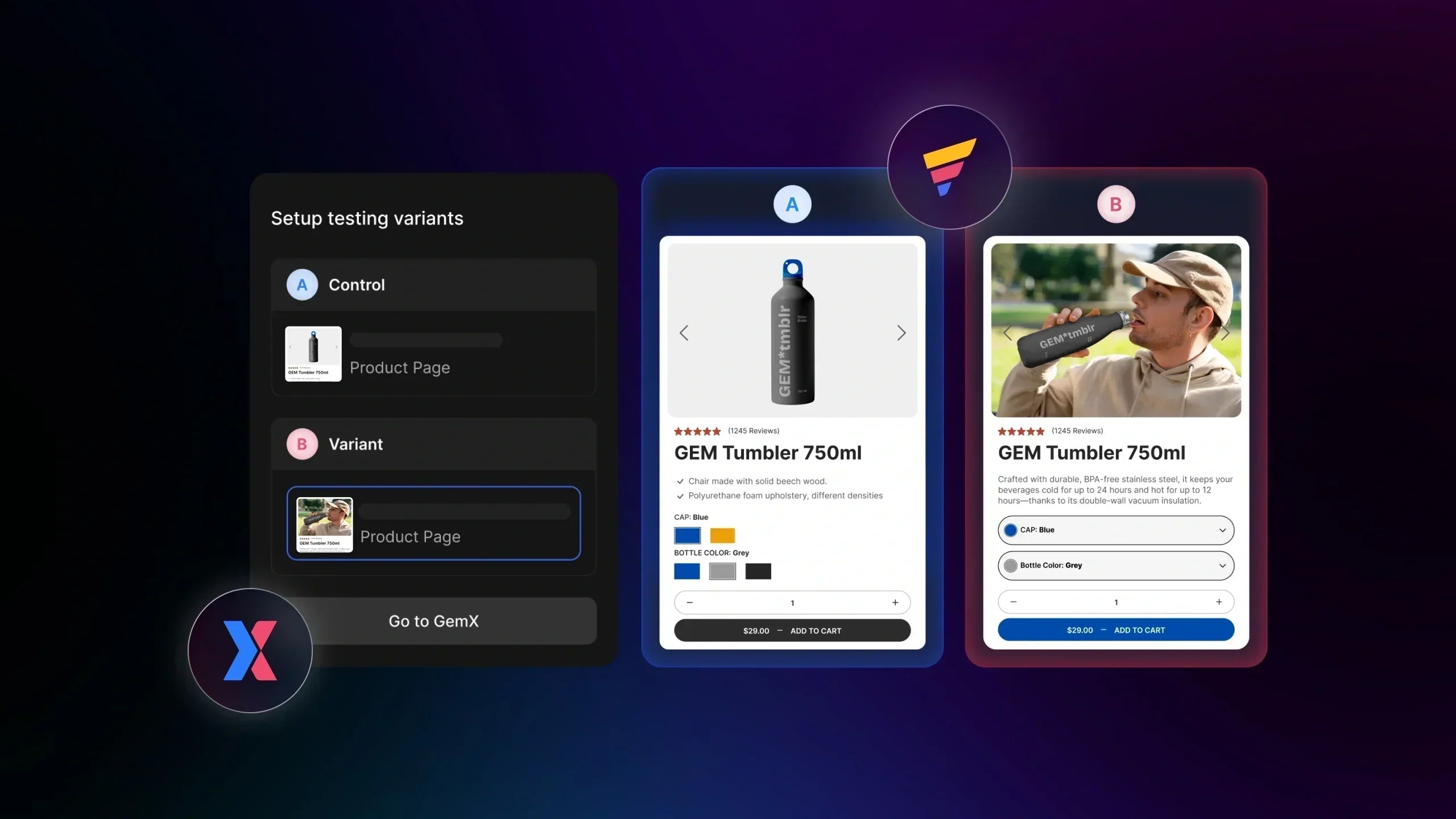
This guide shows you how to create and launch an experiment directly inside the GemPages Editor, without switching to the GemX Dashboard.
This workflow is designed for merchants who want to test page changes quickly while designing.

When Should You Use This Workflow
Use this method if:
-
You are already editing a page in GemPages
-
You want to test design or layout changes quickly
-
You prefer a visual, in-editor setup
-
You are running single-page or template-based experiments
Pro tip: If you need advanced experiment controls or deeper analytics, use the GemX dashboard instead.
Before You Start
Before setting up your campaign right inside the GemPages Editor, please make sure:
-
Your store is using GemPages V7
-
The template you want to test is already published.
-
You have a clear testing hypothesis (what you want to improve and why)
Important Notes
You can create and launch an experiment directly inside the GemPages Editor without installing GemX first.
This in-editor workflow allows you to:
-
Create a Control and Variant
-
Configure basic experiment settings
-
Start an experiment quickly while designing your page
However, you’ll need to install GemX and switch to the GemX Dashboard to:
-
Configure advanced experiment settings
-
Track experiment performance and analytics
-
View detailed reports and insights
-
Manage experiments at scale
Learn more: How to Connect GemX with GemPages to Set Up Your Tests
How to Set Up a GemX Test Campaign Inside GemPages Editor
Step 1: Open Your Page in the GemPages Editor
1. Go to GemPages Dashboard > Pages.
2. Select the product page or landing page you want to test
3. Open the page in the GemPages Editor
Important note: Only published templates can be used to create experiments. If your template is in Draft, publish it first.
Step 2: Open the GemX Panel Inside the Editor
1. In the GemPages Editor, click the GemX icon in the left sidebar.

2. The GemX panel will open inside the Editor.

At this point:
-
Your current template is automatically selected as the Control.

-
You are ready to create a Variant.
Step 3: Create the Variant Template
1. In the GemX panel, click Create experiment variant.
2. GemX automatically duplicates your current template.
3. The duplicated version becomes the Variant.

The original template remains unchanged and continues to serve as the Control.
Step 4: Edit the Variant Template
Click the pen icon under the Variant section. A new editing window will open.

From here, you can customize the Variant using GemPages elements and sections, such as:
-
Make changes based on one clear hypothesis
-
Avoid editing multiple unrelated elements
-
Focus on elements that influence user decisions, such as call-to-action visibility, content clarity, layout, or information hierarchy.

Once satisfied, click Save and Publish to make the Variant live. The experiment cannot run if the Variant is still in Draft.
Step 5: Configure Experiment Settings
Open the GemX panel again and go to the Run experiment section. Configure the following settings:

-
Traffic Split: Choose how traffic is divided between the Control and Variant.
-
Primary Goal: Select the main metric you want to measure, such as Add to Cart or Purchase.
-
Target: Choose where the experiment should apply, such as a specific page or template.
Step 6: Start the Experiment
Click Start experiment. Then, the experiment will go live immediately.

Once live:
-
Traffic is split automatically based on your settings.
-
The GemX panel displays the experiment status inside the Editor.

Manage Your Experiment Inside the Editor
From the three-dot menu in the GemX panel, you can:
-
Preview the experiment
-
Rename the experiment
-
Copy the experiment link

These actions help you manage the experiment without leaving the Editor.
How to Check the Test Results and Next Steps
You can use the GemX panel to check experiment status while editing. However, for further actions, please switch to the GemX Dashboard to:
-
Track experiment performance
-
View detailed analytics
-
Compare Control and Variant results
-
Decide when to stop the experiment

Learn more: How to View and Read Experiment Analytics in GemX
FAQs


